


FAQs
Find quick answers to common questions in our FAQ section. It’s designed to help you get clear, helpful information instantly, saving time and making your experience smoother and more convenient.
My Shipments
Track a PRO or shipment by utilizing the Track LTL Shipments widget on the freight.rrts.com home page. You do not need a user account or log-in to track. Search by PRO, Pickup, BOL or PO by entering the number in the text box and clicking the Track button. Up to 25 numbers can be tracked, enter one number per line.
Tracking can also be done on the Track a Shipment page: Track a Shipment. Tracking from this page also does not require a user account or log-in.
Select TOOLS | Bill of Lading
Enter Shipper, Consignee, or Third Party Address & select Save Address button
Select Manage BOL from left navigation menu to update existing addresses
- Select TOOLS | Transit Time from top menu
- Enter Origin & Destination Postal Codes & select Calculate
- Select TOOLS | Weather Delays from top menu, or
- Click on Weather Delays tile on Home Page, or
- Select Weather Delays from left navigation menu
Customer Dashboard
If you need assistance with your user account or resetting your password for freight.rrts.com, contact CMF: custmaster@rrts.com
Click on Login/Register link in the upper-right hand corner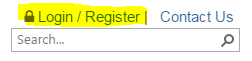
Select Forgot your login or password? link below login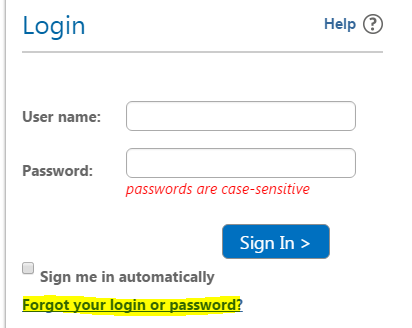
Enter your User Name or Email address in the Recover Password screen
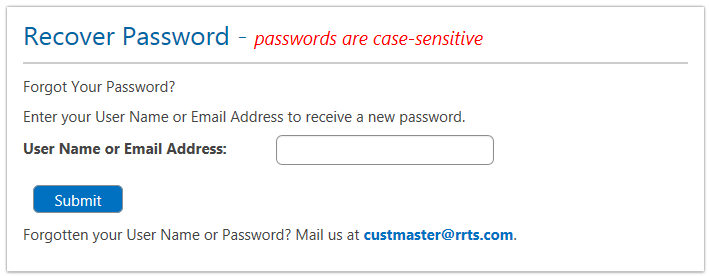
You should receive an email containing a new password
If you do not receive an email, please contact CMF: custmaster@rrts.com
Select TOOLS | Bill of Lading
Enter Commodity & Select Save Commodity button
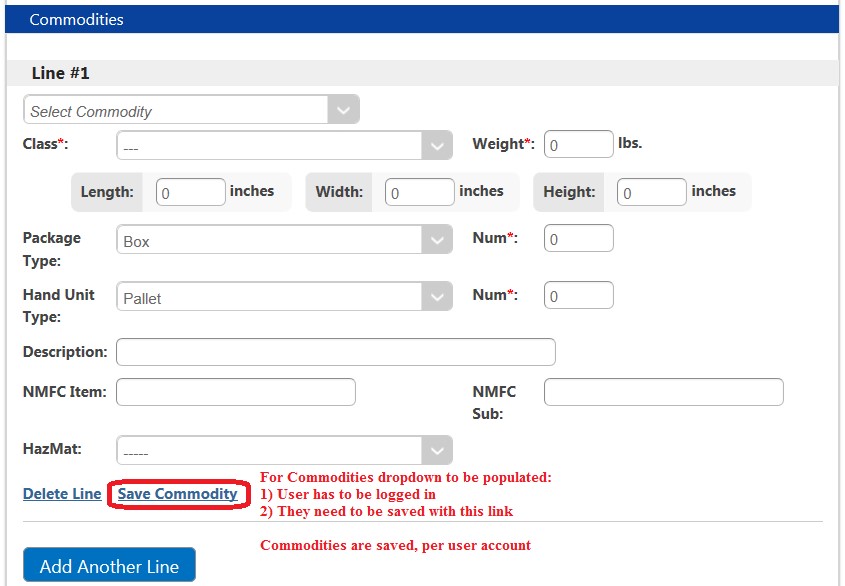
Enter Class(es) to be saved
Use Add Class button to add multiple classes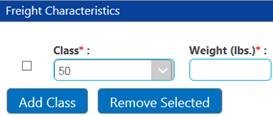
Enter Accessorials to be saved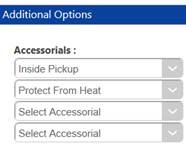
Select Save As Template button at bottom of page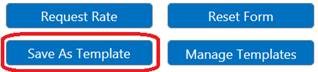
Enter a Template Name & Description, Then select Save As Template again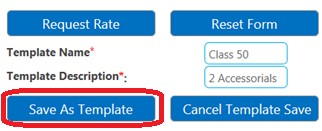
Manage Templates button can be selected to Delete templates, or change the Default Template that is used each time a new LTL Rate Quote Is created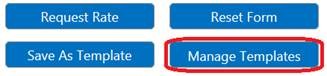
Template dropdown can always be used to use a different template. The last template saved always becomes the Default, unless you use Manage Templates to change it.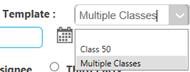
These are the reports available for auto-generation & recurring email delivery.
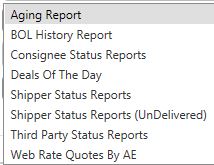
Customers/Employees can subscribe to reports themselves by doing the following:
- Select Tools | View Reports If you do not have access, contact CMF to be granted permissions
- Select Manage Subscriptions in upper right corner
- Select Add new record in top left corner
- Enter appropriate details (Separate emails with semi-colon as needed ), and Select Insert
- You will receive emailed report next morning
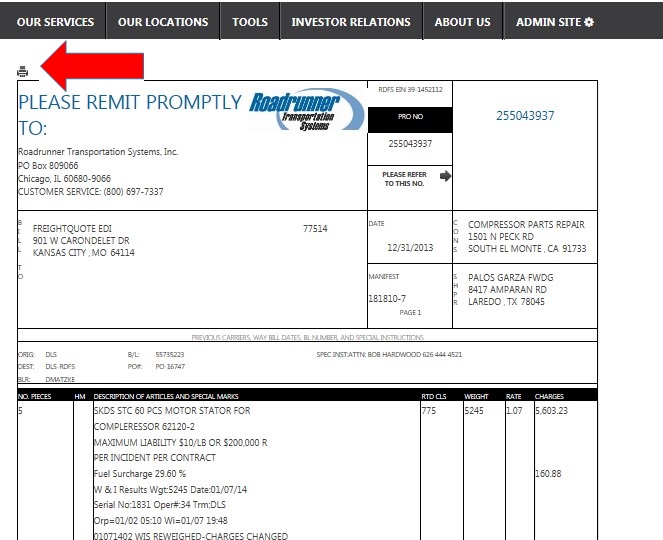
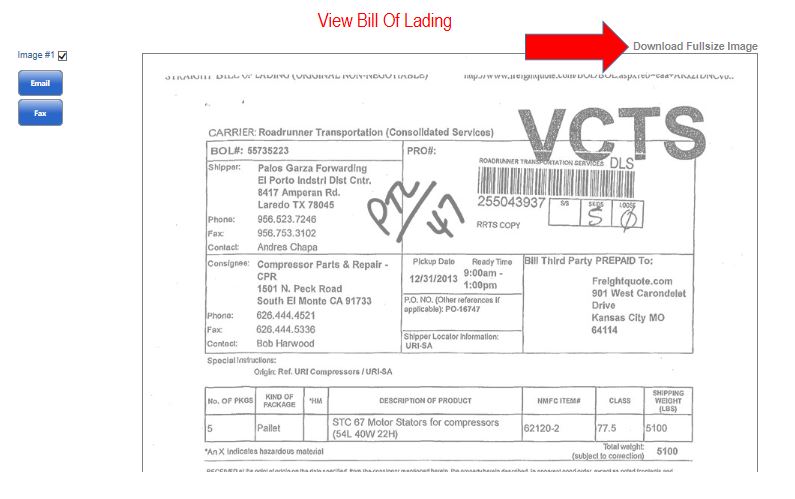
To Print Invoice or BOL: Use the Track A Shipment tool to view shipment information by PRO Number/BOL/PO.
- View the Invoice by clicking on the link in the Shipment Information for PRO#
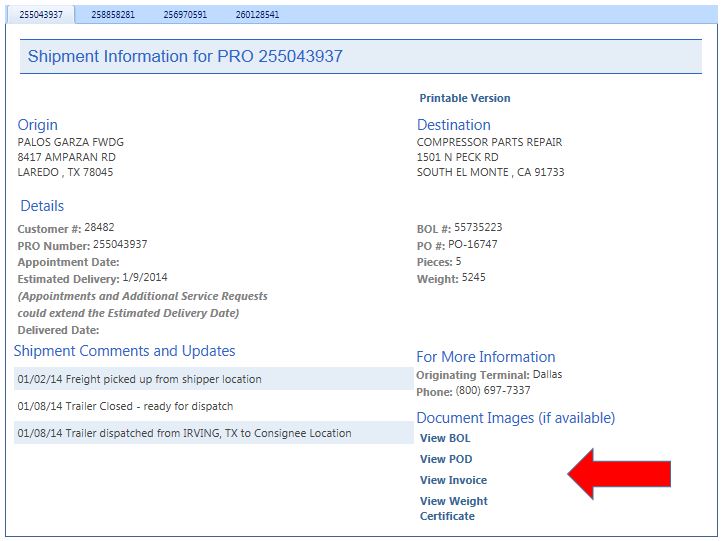
- Click on Printer Icon
- To print a BOL, you must Download the Fullsize Image.
To Print or Save Reports:
- Reports may saved to Excel, PDF or Word and/or printed.

- Select TOOLS | Transit Time from top menu
- Enter Origin & Destination Postal Codes & select Calculate
- Select TOOLS | Weather Delays from top menu, or
- Click on Weather Delays tile on Home Page, or
- Select Weather Delays from left navigation menu
General
To contact Customer Service for Support & Feedback: ltlcustomerservice@rrts.com
Phone: (855) 776-3567
Toll Free: (800) 831-4394
Please also use to report any issues with the Roadrunner website or other website related feedback.